Fix: Ethernet Doesn't Have a Valid IP Configuration in Windows 11/10
In this guide
- Quick fixes to try first
- 1. Restart your modem and router
- 2. Restart the Ethernet adapter
- 3. Release and renew the IP address
- 4. Reset Winsock and TCP/IP
- 5. Make sure the DHCP Client service is running
- 6. Stop Windows turning off the adapter to save power
- 7. Roll back the Ethernet driver
- 8. Reinstall the Ethernet driver
- 9. Use Network reset
- 10. Test with a static IP address (diagnosis only)
- What causes it
- Still not fixed? When it is hardware
- FAQ
"Ethernet doesn't have a valid IP configuration" means your PC is connected by cable but did not get an IP address from your router, so Windows gave the adapter a fallback 169.254.x.x address that cannot reach the internet. The usual causes are a router that has stopped handing out addresses, a bad cable, a stuck adapter, damaged TCP/IP settings or a faulty driver. The fixes below go from quickest to most involved, so test your connection after each one.
Quick fixes to try first
- Check the Ethernet cable is firmly plugged in at both the PC and the router.
- Use one of the router's Ethernet (LAN) ports. The Internet or WAN port is for the modem.
- Try a different cable or another LAN port.
- Restart the PC with Start > Power > Restart.
- Check whether another device can get online through the same router. If nothing can, the router or your internet service is the likely cause.
1. Restart your modem and router
A restart clears a router that has stopped answering address requests and makes a fresh connection to your provider.
- Unplug the router, then the modem. If the modem's lights stay on, remove its backup battery.
- Wait at least 30 seconds, then refit the battery if you removed it.
- Plug the modem back in and wait for its lights to stop blinking.
- Plug the router back in, wait a few minutes, then check the PC again.
With a single modem and router combo box, restart only that device.
2. Restart the Ethernet adapter
The Restart-NetAdapter command disables and re-enables the adapter, which makes Windows ask the router for an address again.
- Select Search on the taskbar, type PowerShell, then select Run as administrator > Yes.
- Find the name of your wired adapter in the Name column (usually Ethernet):
Get-NetAdapter - Restart it, using your adapter's name inside the quotes if it differs:
Restart-NetAdapter -Name "Ethernet" - Wait a few seconds and check the connection.
3. Release and renew the IP address
These commands drop the current address and ask the router's DHCP server for a new one, which is the exact step that failed.
- Select Search, type Command prompt, then select Run as administrator > Yes.
- Run:
ipconfig /release ipconfig /renew ipconfig - Check the IPv4 address under your Ethernet adapter. If it still starts with 169.254, the request failed. An address such as 192.168.x.x means it worked.
4. Reset Winsock and TCP/IP
If network settings inside Windows are damaged, this sequence from Microsoft's guide to fixing Ethernet connection problems resets the TCP/IP stack, renews the address and clears the DNS cache.
- Open Command Prompt as administrator.
- Run these commands in this order:
netsh winsock reset netsh int ip reset ipconfig /release ipconfig /renew ipconfig /flushdns - Restart your PC and check the connection.
5. Make sure the DHCP Client service is running
The DHCP Client service requests the address, so if it is stopped the PC cannot get one automatically.
- Open Command Prompt (administrator is not needed for this check) and run:
net start - Look for DHCP Client in the list. If it is there, move on to the next fix.
- If it is missing, open PowerShell as administrator and run:
Set-Service -Name Dhcp -StartupType Automatic Start-Service -Name Dhcp - Restart the PC.
6. Stop Windows turning off the adapter to save power
If the error appears after the PC wakes from sleep, the adapter may have been powered down and not come back cleanly.
- Select Search, type Device Manager and open it.
- Expand Network adapters, right-click your wired adapter (its name usually includes Ethernet or GbE) and select Properties.
- On the Power Management tab, clear Allow the computer to turn off this device to save power.
- Select OK and restart the PC.
On some PCs, especially those with Modern Standby, the tab is missing or greyed out. If so, skip this fix.
7. Roll back the Ethernet driver
If the error started straight after a Windows or driver update, the previous driver often fixes it. You need an administrator account.
- Right-click Start and select Device Manager.
- Expand Network adapters, right-click your Ethernet adapter and select Properties.
- On the Driver tab, select Roll Back Driver.
- Choose a reason, select Yes, and restart if asked.
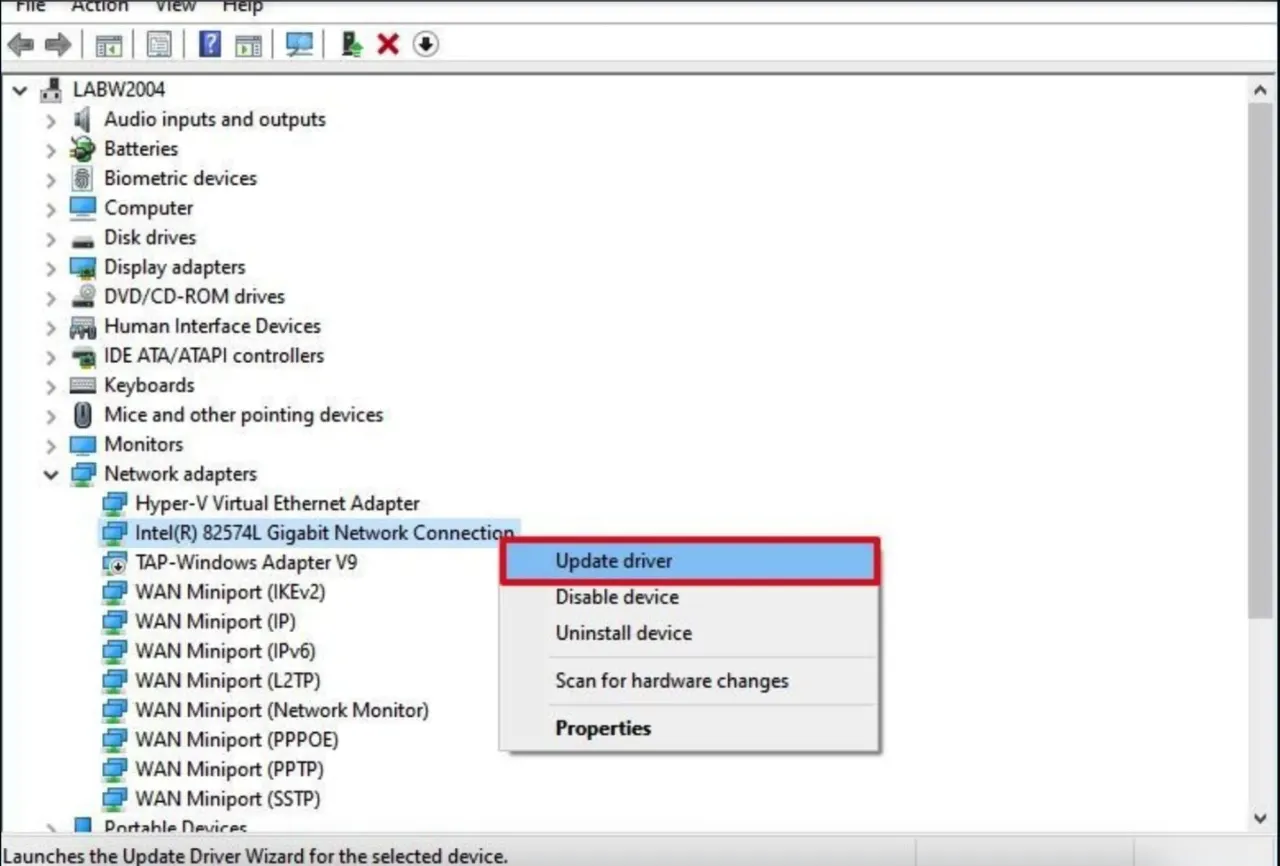
If Roll Back Driver is not available, go to the next fix. Microsoft explains both options in Update drivers through Device Manager.
8. Reinstall the Ethernet driver
A clean reinstall replaces a damaged driver, and Windows sets the adapter up again on restart.
- First download the latest Ethernet (LAN) driver for your exact PC or motherboard model from the maker's support site. If this PC is offline, use another device and a USB drive.
- In Device Manager, expand Network adapters, right-click your Ethernet adapter and select Uninstall device.
- Tick Attempt to remove the driver for this device, then select Uninstall.
- Select Start > Power > Restart. Windows installs a driver automatically.
- If the adapter does not come back, run the driver you saved.
Only use the PC or motherboard maker's official site. Skip driver download sites and driver-updater tools.
9. Use Network reset
Network reset removes every network adapter and its settings, then reinstalls them with defaults. Microsoft recommends it as the last step.
- Open Settings > Network & internet > Advanced network settings > Network reset. On Windows 10, use Settings > Network & internet > Status > Network reset.
- Select Reset now > Yes and let the PC restart.
You may need to reinstall VPN software afterwards, and your networks may switch to the public profile.
10. Test with a static IP address (diagnosis only)
If a manual address works, the PC and cable are fine and the router's DHCP server is the problem.
- Open Settings > Network & internet > Ethernet. If Windows lists a network name, select it.
- Next to IP assignment, select Edit, choose Manual and turn on IPv4.
- Fill in IP address, Subnet mask, Gateway and Preferred DNS. For a router at 192.168.1.1, try 192.168.1.200, 255.255.255.0, and 192.168.1.1 for both gateway and DNS. The router's address is often on its label.
- Select Save and open a website.
If that works, restart the router or check that DHCP is turned on in its admin page. Then set the PC back with Edit > Automatic (DHCP) > Save, which Microsoft recommends in its network settings guide.
What causes it
When a PC cannot reach a DHCP server, Windows falls back to an Automatic Private IP Addressing (APIPA) address in the 169.254.x.x range, which only works on the local network. Microsoft's checklist for DHCP client problems covers the usual causes:
- Loose or damaged cables.
- A disabled or stuck network adapter.
- A missing or outdated adapter driver.
- The DHCP Client service not running.
- A firewall blocking UDP ports 67 and 68, which DHCP uses.
- MAC filtering on a router or switch.
On the router side, the DHCP server may be turned off, frozen or out of addresses.
Still not fixed? When it is hardware
- Other devices fail too. The router or your internet service is the problem. Reset the router using its maker's instructions or contact your provider. Our tips on staying online when your internet goes down can help meanwhile.
- Only this PC fails. If it gets a 169.254 address on every cable and port, even after a driver reinstall and Network reset, while Wi-Fi works, the Ethernet port or adapter may be faulty. Contact your PC or motherboard maker.
- You use a USB-to-Ethernet adapter or dock. Try the built-in port or a different adapter.
- The cable runs through a wall socket or switch. Plug straight into the router to rule them out.
For a record of failures, open Event Viewer and go to Applications and Services Logs > Microsoft > Windows > Dhcp-Client. Event ID 1001 in the Admin log means the PC failed to get an IP configuration.
FAQ
What does a 169.254 IP address mean?
It is an APIPA address Windows gives itself when no DHCP server answers. It only reaches devices on the same local segment, so the internet will not work until the router hands out a proper address.
Can a bad Ethernet cable cause this error?
Yes. Microsoft lists cabling first in its DHCP client checklist, so swap the cable and router port before changing Windows settings.
Why does it appear after sleep or a Windows update?
After sleep, the adapter may not wake properly, so try fixes 2 and 6. After an update, a new driver is a common cause, so try fix 7.
Should I keep a static IP address to stop the error?
No. Use it only as a test. A permanent static address hides a router problem and can clash with another device later.
Does this error mean my internet provider is down?
Not on its own. It is about the link between your PC and router. If other devices on the router are online, the fault is on your PC or its cable.