Fix: Video TDR Failure (VIDEO_TDR_FAILURE) in Windows 11 and 10
In this guide
- Quick fixes to try first
- What video TDR failure means
- 1. Install Windows updates and optional driver updates
- 2. Roll back the driver if the crashes began after an update
- 3. Do a clean reinstall of the graphics driver
- 4. Check temperatures and remove overclocks
- 5. Turn off PCI Express power saving
- 6. Test your RAM with Windows Memory Diagnostic
- 7. Repair Windows files with DISM and SFC
- 8. Find the driver in Reliability Monitor and the crash dump
- What causes video TDR failure
- When it is hardware
- FAQ
VIDEO_TDR_FAILURE (stop code 0x116) means your graphics card stopped responding, Windows tried to reset the graphics driver, and the reset failed. The usual causes are a faulty or outdated graphics driver, an unstable overclock, overheating, or a power or hardware fault with the card. The fixes below go from quickest to most involved.
Quick fixes to try first
- Update the game or app that was running when it crashed.
- Undo any overclock on the graphics card, processor or memory.
- Close overlays, recorders and other background apps while gaming.
- If it crashes during browser video, turn off hardware acceleration in that browser. Intel suggests this for 0x116 crashes on its graphics.
- Remove any hardware you added just before the crashes began.
What video TDR failure means
TDR stands for Timeout Detection and Recovery. Windows expects the graphics card to finish or pause its current task within 2 seconds. If it does not, Windows resets the graphics driver, the screen flickers, and you see "Display driver stopped responding and has recovered."
According to Microsoft's bug check 0x116 reference, you get VIDEO_TDR_FAILURE instead when the driver cannot finish its work in time during that reset, or when more than five TDRs happen within one minute.
The file named on the blue screen tells you whose driver was involved:
| File on the screen | Driver |
|---|---|
| nvlddmkm.sys | NVIDIA |
| atikmpag.sys or amdkmdag.sys | AMD Radeon |
| igdkmd64.sys or igdkmdn64.sys | Intel graphics |
| dxgkrnl.sys | Windows itself (DirectX graphics kernel) |
If only dxgkrnl.sys is named, fix 8 finds the vendor driver in the crash dump.
1. Install Windows updates and optional driver updates
Updates fix known Windows and driver bugs, and Microsoft's blue screen steps start here.
- Open Settings > Windows Update and select Check for updates. Install everything offered.
- Go to Settings > Windows Update > Advanced options > Optional updates. If a display driver is listed, select it and choose Download and install.
- Restart the PC.
On Windows 10, use Settings > Update & Security > Windows Update.
2. Roll back the driver if the crashes began after an update
Going back to the previous driver is the fastest way to test whether a new one caused the timeouts.
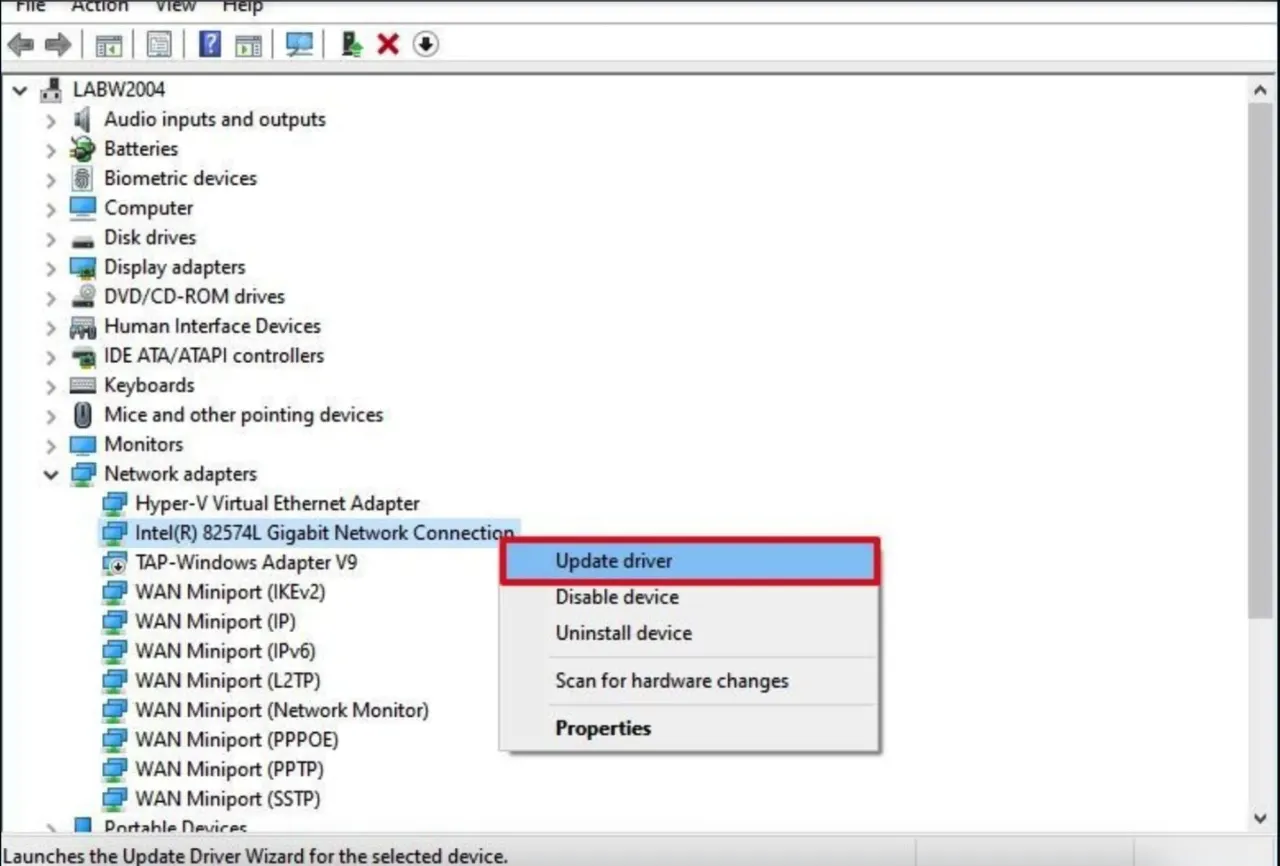
- Right-click Start and select Device Manager.
- Expand Display adapters, right-click your graphics card and select Properties.
- On the Driver tab, select Roll Back Driver.
- Pick a reason, select Yes and restart if asked.
If the button is greyed out, no earlier driver was installed. Use fix 3 instead.
3. Do a clean reinstall of the graphics driver
A clean install removes the old driver and its settings, clearing corruption that a normal update leaves behind. On a laptop, check the laptop maker's support page first, since Intel notes PC makers may customise drivers for their models.
NVIDIA
- Download the latest driver from NVIDIA and close all open apps.
- Right-click the installer and select Run as administrator.
- Select NVIDIA Graphics Driver and NVIDIA App, then AGREE AND CONTINUE.
- Choose Custom (Advanced), select Next, tick Perform a clean installation and select Next.
- Restart when it finishes. NVIDIA's clean install guide lists the same steps.
AMD
- Download and run the AMD Cleanup Utility. It removes AMD graphics and audio drivers (not chipset drivers) and creates a restore point first.
- Select Yes to restart and run it in safe mode, which AMD recommends.
- Select OK. The screen may flicker or go blank briefly.
- Select Finish, then Yes to restart.
- Install the latest AMD Software: Adrenalin Edition driver from amd.com.
Intel
- Download the graphics driver from Intel or your PC maker and run it.
- Accept the license agreement.
- Tick Execute a clean installation and select Start.
- Restart when asked. Intel's clean installation article covers older installers.
4. Check temperatures and remove overclocks
Microsoft lists overclocked parts, wrong memory timings and poor cooling among the causes of this bug check.
- Press Ctrl + Shift + Esc, open Performance and select your GPU. A dedicated card shows its temperature there if its driver supports WDDM 2.4 or newer.
- Run the game that crashes. If the temperature keeps climbing right before each crash, the card is overheating.
- Shut down, unplug and clean dust from the case fans, graphics card cooler and laptop vents.
- Set any graphics card overclock back to default in the tool you used.
- If you overclocked the processor or turned on a memory profile such as XMP or EXPO, load the BIOS/UEFI defaults. The menu name varies by motherboard.
5. Turn off PCI Express power saving
Link State Power Management lets Windows put the PCI Express link to your card into a low-power state when idle, so turning it off rules that out.
- Open Control Panel and go to System and Security > Power Options.
- Next to your active plan, select Change plan settings, then Change advanced power settings.
- Expand PCI Express > Link State Power Management.
- Set it to Off (on a laptop, for both On battery and Plugged in) and select OK.
If PCI Express is not listed, your plan hides it. Move on.
6. Test your RAM with Windows Memory Diagnostic
Faulty or misconfigured memory is on Microsoft's list of causes.
- Save your work and close all apps.
- Press Windows + R, type mdsched and select OK.
- Select Restart now and check for problems (recommended).
- For a deeper test, press F1 during the scan, set Test Mix to Extended and press F10.
- After signing in, read the result notification, or find MemoryDiagnostics-Results in Event Viewer's System log.
Any error points to bad memory. Test modules one at a time to find the faulty one.
7. Repair Windows files with DISM and SFC
If Windows' own graphics components are damaged, a new driver will not help.
- Search for cmd, right-click Command Prompt and select Run as administrator. Both commands need this administrator window.
- Run this and wait, as it can take several minutes:
DISM.exe /Online /Cleanup-image /Restorehealth - Then run:
sfc /scannow - Wait until verification reaches 100%, then restart.
8. Find the driver in Reliability Monitor and the crash dump
The crash record shows which driver was involved, which helps when the screen only names dxgkrnl.sys.
- Press Windows + R, type perfmon /rel and select OK. Check the critical events on crash days for a driver or app install just before them.
- For detail, install WinDbg from a normal Command Prompt:
winget install Microsoft.WinDbg - Copy the newest .dmp file from C:\Windows\Minidump to your Desktop and open it in WinDbg. If the folder is empty, use C:\Windows\MEMORY.DMP.
- In the command box, run:
!analyze -v - Match the IMAGE_NAME line to the table above and reinstall that driver with fix 3.
What causes video TDR failure
Microsoft's reference lists an outdated or damaged display driver, overclocked parts, wrong memory settings, poor cooling, insufficient power, defective parts and too many background programs. A different stop code needs different fixes, such as our guide to the SYSTEM_SERVICE_EXCEPTION error.
When it is hardware
If crashes continue after a clean driver install, stock clocks, normal temperatures and a clean memory test, suspect the graphics card or its power. With the PC unplugged:
- Reseat the card and push each PCIe power cable fully into the card and the power supply.
- Check the power supply meets the card maker's recommended wattage.
- If your processor has built-in graphics, remove the card and run from the motherboard's video output. If crashes stop, the card is the suspect.
- Test the card in another PC. A card that crashes in two PCs needs repair or a warranty claim.
- Update the BIOS/UEFI and run your PC maker's hardware diagnostics. On a laptop, contact the manufacturer.
FAQ
Does VIDEO_TDR_FAILURE mean my graphics card is dying?
Not usually. Most cases come down to the driver, an overclock or heat. Suspect the card only if crashes survive every fix above or follow the card into another PC.
How is it different from "Display driver stopped responding and has recovered"?
That message means a reset worked. VIDEO_TDR_FAILURE means the reset failed, or more than five happened in a minute. Frequent recovery messages are an early warning, so the same fixes apply.
Should I raise TdrDelay in the registry?
Only as a last resort. TdrDelay sets how many seconds the GPU gets before Windows treats it as hung (default 2). It is a REG_DWORD value in HKEY_LOCAL_MACHINE\System\CurrentControlSet\Control\GraphicsDrivers, but Microsoft's TDR registry keys page says these keys are for driver development testing and end users shouldn't change them. A longer delay does not fix a bad driver or card, it only leaves the screen frozen longer. If you try it, back up the registry first and delete the value afterwards to restore the default.
Can I do these fixes in Safe Mode if Windows keeps crashing?
Yes. Go to Settings > System > Recovery, select Restart now next to Advanced startup, then choose Troubleshoot > Advanced options > Startup Settings > Restart and press 4 or F4. On Windows 10, Recovery is under Settings > Update & Security.