Fix: Outlook Search Not Working in Windows 11 and 10
In this guide
- Quick fixes to try first
- Classic Outlook or new Outlook?
- 1. Check that Outlook has finished indexing
- 2. Make sure every mailbox is selected for search
- 3. Start the Windows Search service
- 4. Run the Windows search troubleshooter
- 5. Include Outlook in Indexing Options
- 6. Rebuild the search index
- 7. Update and repair Office
- Searching for older emails, shared mailboxes and archives
- If you use the new Outlook for Windows
- What causes Outlook search to stop working
- Still not fixed?
- FAQ
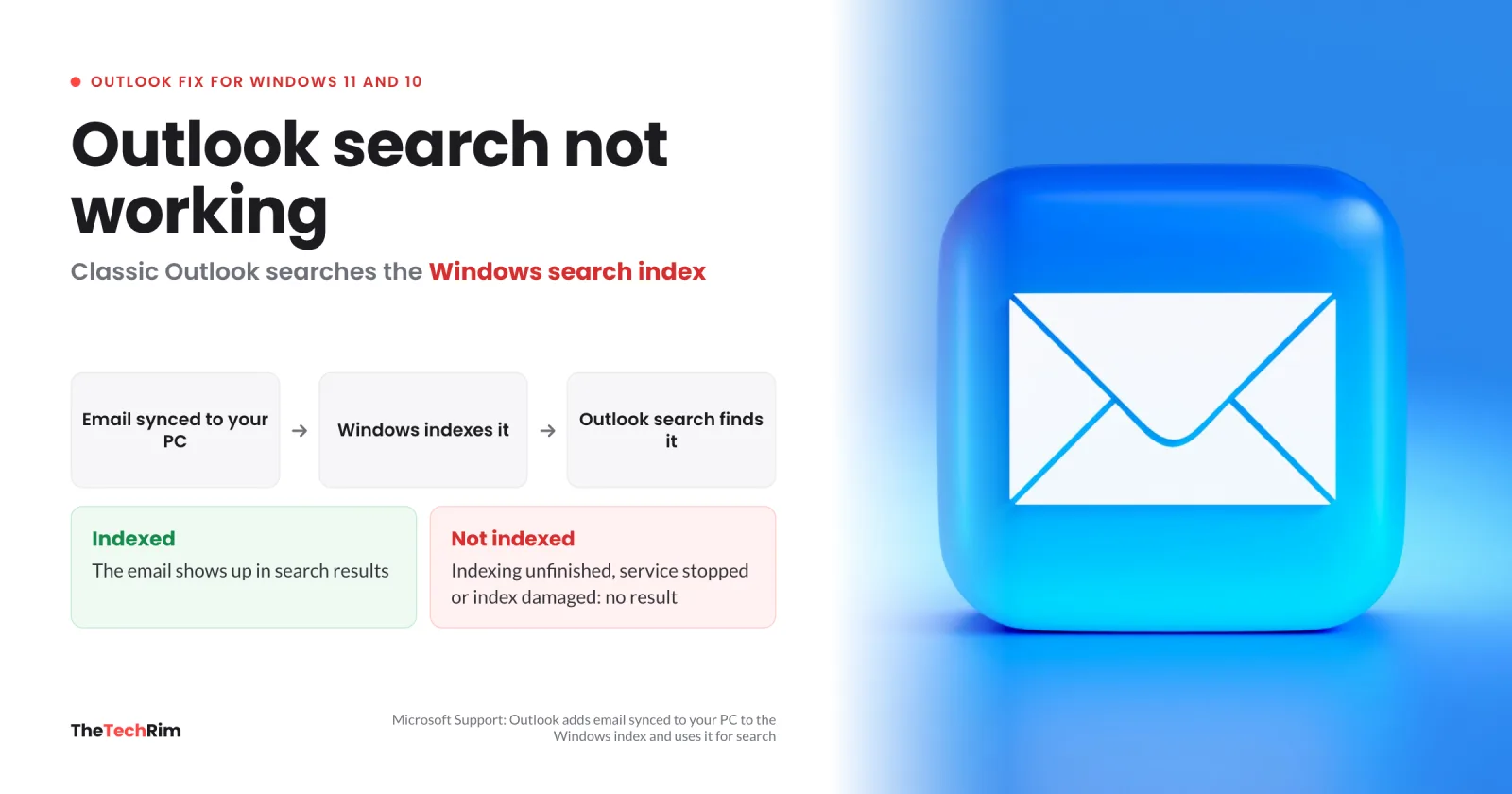
When Outlook search is not working, it either returns no results at all or finds only some of your emails. In classic Outlook the cause is usually the Windows search index: Outlook has not finished indexing your mail, the Windows Search service is stopped, or the index is damaged. The fixes below go from quickest to most involved.
Quick fixes to try first
- Close Outlook fully, open it again and repeat the search.
- Restart the PC. This also installs any pending Windows updates.
- Check the search scope list next to the search box. Current Folder only searches the folder you have open, so pick Current Mailbox or All Mailboxes instead.
- Clear any filters, such as sender or date, left over from an earlier search.
- If you use Microsoft 365, Exchange or Outlook.com, search the same mailbox in Outlook on the web. If the email shows up there, the mailbox is fine and the fault is on your PC.
Classic Outlook or new Outlook?
Look for Settings on the Outlook ribbon. If it is missing, you have classic Outlook and fixes 1 to 7 apply. If it is there, you have the new Outlook for Windows, so skip to the new Outlook section. Microsoft's Outlook search troubleshooting page splits its steps the same way.
1. Check that Outlook has finished indexing
Classic Outlook searches through the Windows search index, so mail that has not been indexed yet cannot appear in results. Microsoft's search indexing FAQ confirms that Outlook adds the email synced to your PC to the index and uses it for searching.
- Click in the Outlook Search box.
- On the ribbon, select Search Tools > Indexing Status.
- If items are still waiting to be indexed, note the number, wait five minutes and check again.
- If the number does not go down, move on to the next fix.
Microsoft says a first full index can take up to a couple of hours, so leave the PC switched on while it runs.
2. Make sure every mailbox is selected for search
If a mailbox or data file is unticked, Outlook leaves it out of every search.
- Click in the Search box.
- Select Search Tools > Locations to Search.
- Tick every mailbox and data file in the list.
3. Start the Windows Search service
Outlook cannot use the index while the Windows Search service is stopped or disabled. You need an administrator account to change a service.
- Select Start, type the command below and press Enter.
- In the Name column, double-click Windows Search.
- Set Startup type to Automatic (Delayed Start).
- If Service status does not show Running, select Start, then OK.
services.msc4. Run the Windows search troubleshooter
Windows has a built-in troubleshooter that looks for indexer problems and fixes the ones it can.
- On Windows 11, open Settings > Privacy & security, select Searching Windows (named Search on newer versions) and then Indexer troubleshooter.
- On Windows 10, open Settings > Update & Security > Troubleshoot, select Search and Indexing and then Run the troubleshooter.
- Select the problems that apply, follow the prompts, then restart Outlook.
5. Include Outlook in Indexing Options
If Microsoft Outlook has been removed from the indexed locations, Windows never catalogs your mail and searches come back empty.
- Close Outlook.
- Select Start, type Indexing Options and open it.
- Check that Microsoft Outlook is listed under Included Locations.
- If it is not, select Modify, tick Microsoft Outlook and select OK.
- Select Close.
While Indexing Options is open, select Advanced > File Types, find msg and make sure Index Properties and File Contents is selected. Its Filter Description should read Office Outlook MSG IFilter. If it does not, Outlook's search filter is not installed correctly: repair Office (fix 7), and contact Microsoft Support if it is still missing.
6. Rebuild the search index
If indexing is stuck or the index is damaged, rebuilding it makes Windows catalog everything again from scratch.
- Close Outlook.
- Open Indexing Options from the Start menu.
- Select Advanced.
- On the Index Settings tab, under Troubleshooting, select Rebuild.
- Select OK when Windows warns that the index might take a long time to complete.
The rebuild covers your files as well as your email, so search stays incomplete until it finishes. Follow the progress in Outlook with Search Tools > Indexing Status.
7. Update and repair Office
Updates fix known Outlook problems, and a repair replaces damaged Office files.
- In Outlook, select File > Office Account > Update Options > Update Now, as described on Microsoft's Office updates page. Restart Outlook and test search.
- If search still fails, close Outlook, right-click Start and select Installed apps (on Windows 10, Apps and Features).
- Find your Microsoft 365 or Office entry and select Modify. If you do not see it, select the three dots next to the entry first.
- Choose Quick Repair. If that does not help, run it again with Online Repair, which takes longer but checks everything.
Searching for older emails, shared mailboxes and archives
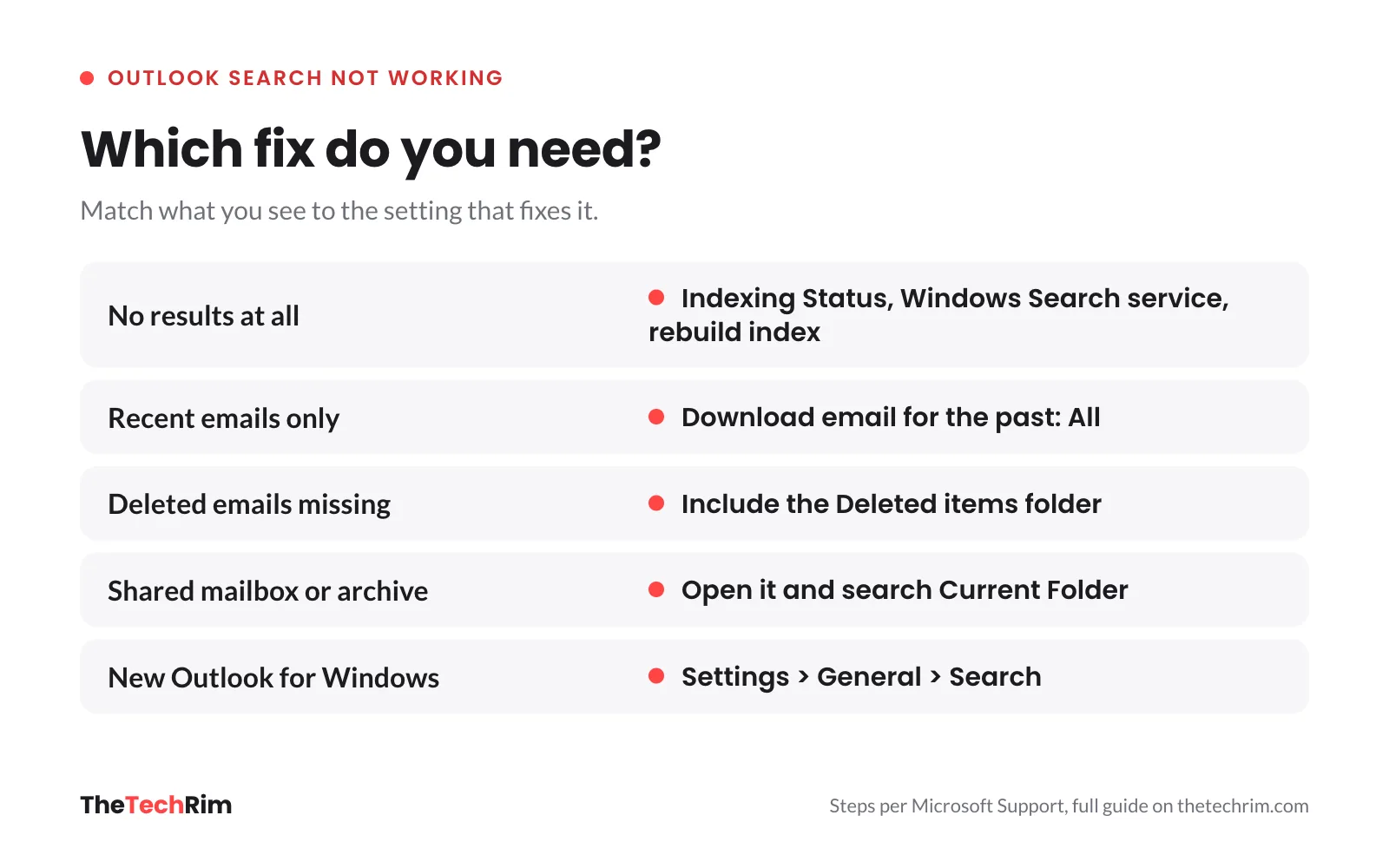
If search finds recent emails but not older ones, Outlook may keep only a few months of mail on your PC, and only that mail gets indexed. You can raise the limit:
- Select File > Account Settings > Account Settings.
- On the Email tab, select your account and then Change.
- Drag the Download email for the past slider further right, or all the way to All.
- Select Next, then Done, and restart Outlook.
To search deleted mail too, go to File > Options > Search, tick Include messages from the Deleted items folder in each data file when searching in All Items, select OK and restart Outlook.
Archive and shared mailboxes are limited by design: open the archive folder or the shared mailbox itself and search with Current Folder.
If you use the new Outlook for Windows
The new Outlook has its own search settings and does not use the steps above.
- Open Settings > General > Search and check the default search scope.
- Under Search results, tick Include deleted items if the missing emails might be in Deleted Items, then select Save.
- For older emails, open Settings > General > Offline, choose a longer period under Days of email to save and select Save.
- If you have several accounts, select each account and search in All Folders. The new Outlook does not search across accounts at once.
When a search finds too many matches, older items may not be shown, so add a sender or date filter.
What causes Outlook search to stop working
- Indexing has not finished, for example on a new PC or a new profile.
- The Windows Search service is stopped, or Outlook is not an indexed location.
- The search index is damaged.
- Only part of the mailbox is kept on the PC.
- The search scope or a filter leaves out the right folder.
- The Outlook profile or the Office installation is damaged.
Still not fixed?
Test search in a new Outlook profile. A damaged profile can break search even when the index is healthy.
- Select File > Account Settings > Manage Profiles, or close Outlook and open Mail in Control Panel.
- Select Show Profiles, then Add.
- Type a name for the profile, select OK and sign in to your email account.
- Under When starting Microsoft Outlook, use this profile, choose Prompt for a profile to be used and select OK.
- Restart Outlook, pick the new profile and try a search once the mail has synced and indexed.
If search works in the new profile, the old profile is the problem. Make the new one your default, and keep the old one until you have checked nothing is missing.
If search fails in the new profile too, remove Office with Microsoft's Office uninstall troubleshooter (it cannot remove Office 2024) and reinstall it. On a work or school account, ask your IT team first: only they can fix a problem on the mail server.
If Outlook also shows a [pii_email] error code, see our guide to the [pii_email_bbc3ff95d349b30c2503] error in Outlook.
FAQ
Why does Outlook search only show recent emails?
Usually because Outlook keeps only part of your mailbox on the PC. Raise Download email for the past (classic) or Days of email to save (new Outlook) and let indexing finish.
How long does rebuilding the Outlook search index take?
It depends on how much mail and how many files you have. Microsoft says a first index can take up to a couple of hours. Watch Search Tools > Indexing Status: if the remaining count keeps falling, leave it to finish.
Does rebuilding the index delete my emails?
No. The index is a separate catalog of the words in your email and files. A rebuild deletes and recreates that catalog only, and your messages stay where they are.
Why can't Outlook search my shared mailbox?
The All Mailboxes scope returns nothing for a shared mailbox, and Microsoft says this will not change. Select the shared mailbox and search with Current Folder, or add it to Outlook as a second account.
Is the fix different on a Mac?
Yes. Outlook for Mac relies on Spotlight rather than the Windows index, so follow Microsoft's Outlook for Mac search guide instead.