Fix for the uBlock Origin Twitch Problem: Block Ads on Twitch (Updated for 2026)
uBlock Origin is no doubt one of the best ad blockers online. It is the best in its field because it even blocks ads on Twitch. But recently, many users have been having problems with uBlock Origin on Twitch. If you are reading this article, you are probably one of the people facing this problem.
The developers of Twitch are constantly working to make their ads unblockable, so they frequently update their algorithm. With the recent Twitch updates, some uBlock users are facing this problem. But don’t worry, we at TechRim are here to help you block Twitch ads and fix the uBlock Origin Twitch problem.
Today we will present different solutions for the uBlock Origin Twitch problem.
Why Is There a uBlock Origin Twitch Problem?
As mentioned earlier, Twitch updates its algorithm time and again to stop ad blocking. With the new Twitch updates, most ad blockers have stopped working. But don’t worry, we are here with the solution to your problem. If you are facing the Twitch 2000 error, you can check the link.
Solution for the uBlock Origin Twitch Problem
Ads on Twitch are very frustrating because they don’t have a cool-down feature. If you watch a complete ad and then change the channel, you will see another ad. So it is better to block the ads.
We are not sure whether the methods below will work for you (because of Twitch’s frequent updates). If you find a method that is not working, comment below and we will replace it with another one.
We will try our best to update the methods frequently, so stay tuned to our blog. Follow the solutions below for the uBlock Origin Twitch problem.
Solution 1: Updated Ad Blocker Scripts
Below are the updated scripts for uBlock Origin Twitch and Tampermonkey. All the scripts below are tested and working. If you find that any of them are not working, let us know. We will remove that script and replace it with the most recent working one.
Before listing the scripts, I want to show you how to apply them.
How to Apply an Ad Blocker Script in uBlock Origin for Twitch?
Follow the steps below to apply the ad blocker scripts in uBlock Origin for Twitch.
- Install the uBlock extension in Google Chrome or Firefox.
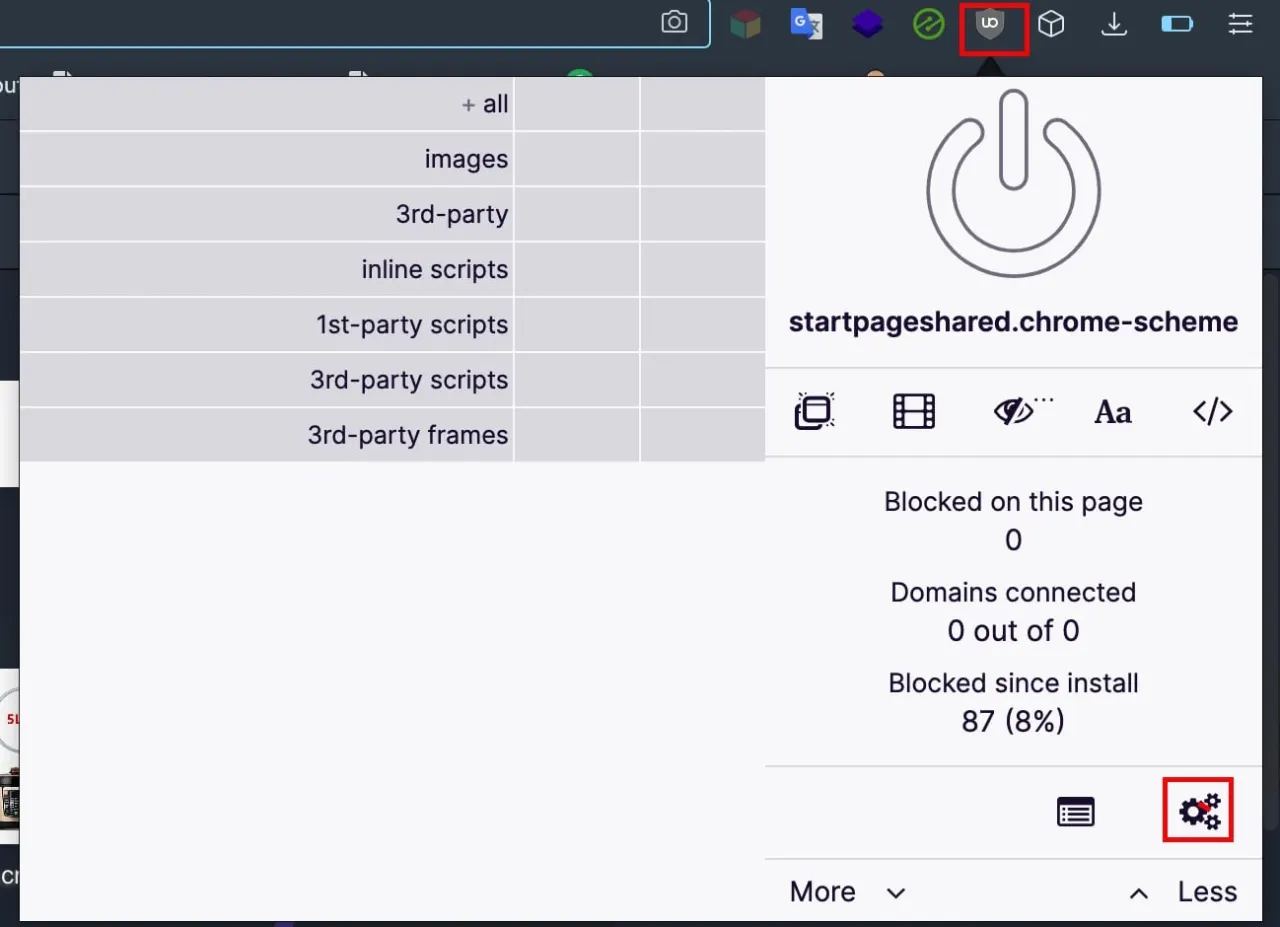
- Once you have installed uBlock Origin, go to its settings dashboard. To do this, click on the uBlock icon and then click on the settings gear icon.
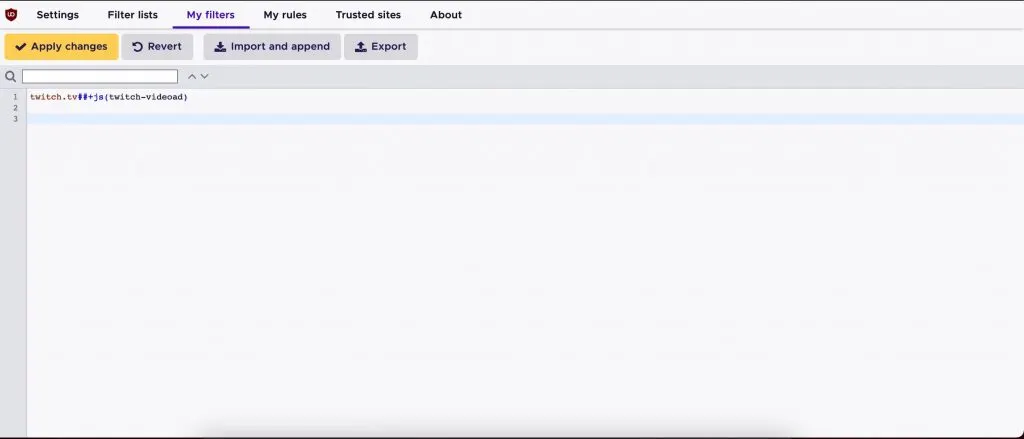
uBlock Origin Twitch - Once you are on the settings page, go to the “My Filters” tab, enter the following code and save it.
twitch.tv##+js(twitch-videoad)
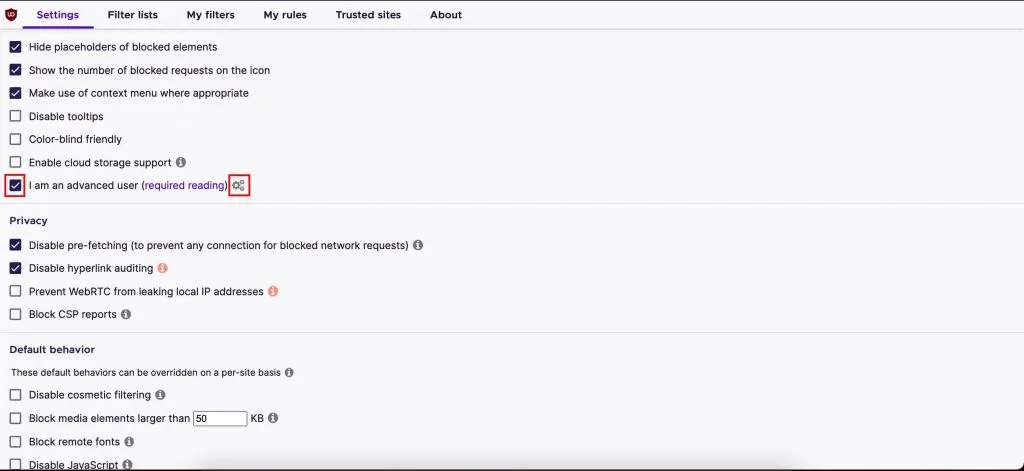
uBlock Origin Twitch: My Filters - After entering the details in “My Filters”, go to Settings, select “I am an advanced user” and then click the cog that appears.
uBlock Origin Twitch: Advanced Settings - Change the value of “userResourcesLocation” from “unset” to any of the scripts listed below.
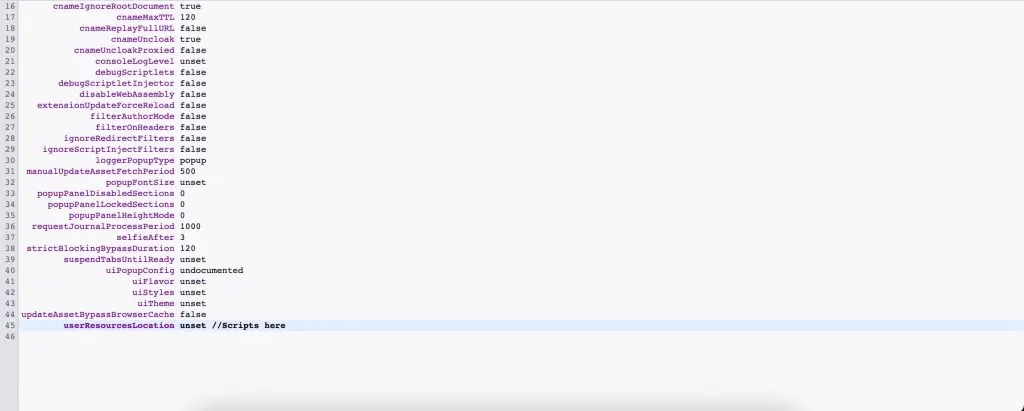
uBlock Origin Twitch - Once you have loaded the script, I recommend that you disable and re-enable the uBlock Origin extension (or restart your browser).
How to Apply an Ad Blocker Script in Tampermonkey?
To install or use any of the scripts below in Tampermonkey, follow these steps:
- Install the extension in Chrome or Firefox.
- Once you have installed the extension, click on the Tampermonkey icon and select “Create a new script”.
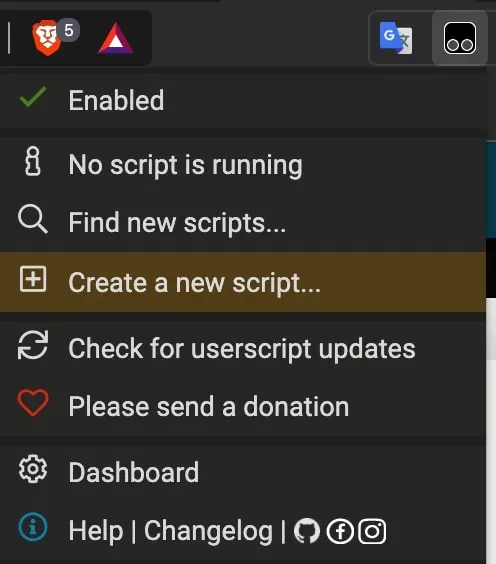
Tampermonkey - Then paste in one of the scripts you can get below.
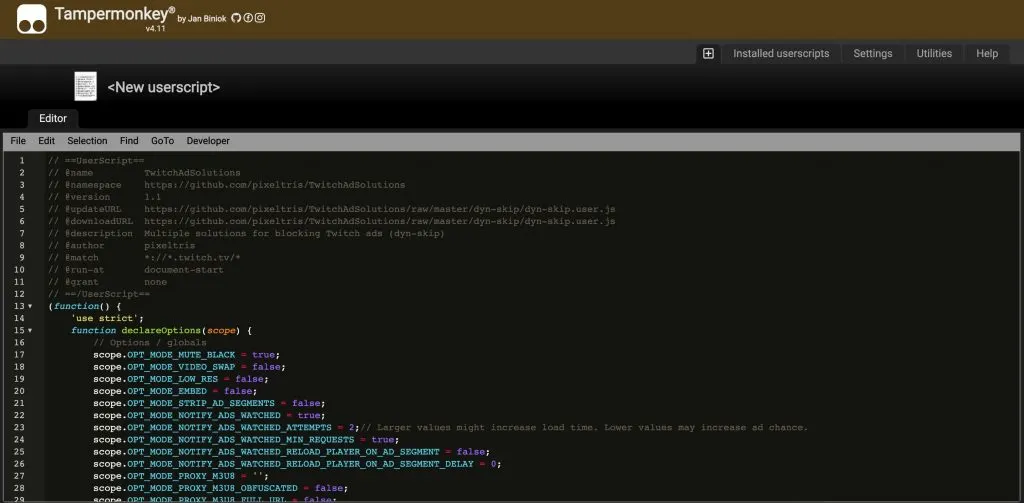
Tampermonkey script - Once you have loaded the script, I recommend that you disable and re-enable the uBlock Origin extension (or restart your browser).
Now that you know how to install the scripts in Tampermonkey and uBlock, below is the list of working scripts.
1. dyn-skip / dyn
- Notifies Twitch that ads were watched before requesting the main live stream.
- Falls back to mute-black if this fails (use an alternative solution if it always fails for you, as it adds extra load).
- Midroll ads are muted and blacked out. See
dyn-skip-midroll-altfor an alternative solution.
Script for uBlock:
userResourcesLocation https://raw.githubusercontent.com/4vian5/TwitchAdSolutions/master/dyn-skip/dyn-skip-ublock-origin.js
Script for Tampermonkey:
Click on this link for the script.
You can also try other dyn scripts from this link. All of the scripts were working at the time of posting. Below are the features of all the dyn scripts.
dyn-skip-midroll-alt
- A mix of
dyn-skip/dyn. During midrolls, this plays a low-resolution stream instead of nothing. It might be a little glitchy, but it should always play something. - If you see a
Waiting for ads to finishbanner withoutmidrollin the banner text, you should be able to refresh the page to get the regular stream.
dyn-video-swap
- Ads are replaced by a low-resolution stream for the duration of the ad.
- Similar to
dyn, but skips closer to 20 seconds when switching to the live stream. - You might see tiny bits of the ad.
- Audio controls won’t work while the ad is playing.
dyn
- Ad segments are replaced by low-resolution stream segments (on an m3u8 level).
- It skips 2 to 3 seconds when switching to the live stream.
- Stuttering and looping of segments often occur (during the ad segments).
- NOTE: Removing segments doesn’t notify Twitch that ads were watched (so more ads are served).
2. low-res
- No ads.
- The stream is 480p for the whole duration of the stream.
Script for uBlock:
userResourcesLocation https://raw.githubusercontent.com/4vian5/TwitchAdSolutions/master/low-res/low-res-ublock-origin.js
Script for Tampermonkey:
Click on this link for the script.
3. mute-black
- Ads are muted and blacked out for the duration of the ad.
- You might see tiny bits of the ad.
Script for uBlock:
userResourcesLocation https://raw.githubusercontent.com/4vian5/TwitchAdSolutions/master/mute-black/mute-black-ublock-origin.js
Script for Tampermonkey:
Click on this link for the script.
If you don’t want to install any third-party scripts in your browser, the second solution is probably for you.
Solution 2: Using a VPN
You may wonder how using a VPN can solve the uBlock Origin Twitch problem.
The answer is that the main purpose of uBlock Origin is to block ads so you can view content without them. Twitch ads are not shown in a few countries. So we just have to change our IP to one from a location where the ads are not shown. And how do we change our IP? By using a VPN.
You can use a VPN to change your IP to a country where the ads are not shown.
At the time of posting this article, Twitch ads are not shown in Serbia. You can also try other locations like Costa Rica, Hungary, etc., and wait a few minutes. If you don’t see ads there, enjoy your viewing. Otherwise, change the location to another country and try again.
Solution 3: Using Alternative Websites Like Popdog.com
There are many alternatives for viewing Twitch live streams. You don’t have to open twitch.com to watch them. Some of the great alternatives for Twitch are:
Both of these websites are great and carry every Twitch live stream. So enjoy your Twitch live streams from a third-party website.
You can also download Twitch clips using this.
Solution 4: Choose an Alternative Platform
Twitch is not the only platform that supports live streaming for games. There are many other platforms you can choose from.
The most popular ones are YouTube Gaming and Facebook Gaming, where your uBlock extension should still work and block all ads.